> For the complete documentation index, see [llms.txt](https://docs.seaart.ai/guide-1/llms.txt). Markdown versions of documentation pages are available by appending `.md` to page URLs; this page is available as [Markdown](https://docs.seaart.ai/guide-1/seaart-ai-basic-function/ai-video-generation/text-to-video.md).
# Text to Video
Whether it's a detailed description or a brief idea, SeaArt can seamlessly transform your words into dynamic, captivating visuals. It allows you to effortlessly turn your imagination into reality.
Simply input a piece of text, and SeaArt can accurately generate corresponding video scenes based on your description. Whether it's a complex scene setting or a simple creative idea, it efficiently transforms your words into vivid, lifelike dynamic visuals.
## **Prompt Framework**
Main Subject + Movement + Environment + Camera + Lighting & Atmosphere + Audio
* **Main Subject**** ****Movement**: The main subject is the core content of the video, which can be a **person, animal, object, etc**. Then describe the **movement** of the subject.
* **Environment**: The environment sets the scene and atmosphere for the video, helping to emphasize the subject and convey emotion. Environmental prompts can describe **specific locations, weather, time, and details** in the scene.
* **Camera**: Camera movement can create more visually impactful scenes, including camera actions and perspectives, such as **close-ups, blurred backgrounds, low-angle shots, etc.**
* **Lighting & Atmosphere**: Lighting and atmosphere determine the overall visual presentation and aesthetics of the video, which can greatly enhance the visual expression, such as **sunset, cinematic atmosphere, fog, etc.**
* **Audio:** optional. Describe dialogue, ambient sound, sound effects, or music.
**Tips:**
1. Accurately describe the subject, and it is recommended to use smooth and concise sentences.
2. Ensure the completeness of the prompts, and consider using Prompt Refinement to expand the prompts.
3. Use short sentences for descriptions, keeping the scene content simple, aiming to complete the display within 5-10 seconds.
4. For split-screen scenes, use prompts like "4 camera angles, cat, dog, bird, mouse."
5. When describing quantities, it can be challenging to maintain consistency, such as "5 apples on the table."
6. Most video models generate audio by default. Add “no audio” to the prompt if you do not want audio.
## Prompt Analysis
Text-to-Video mainly includes: subject + action + scene. To add more detail and atmosphere to the video, you can appropriately expand the prompts. Try to maintain the completeness of each element during the description.
For example:
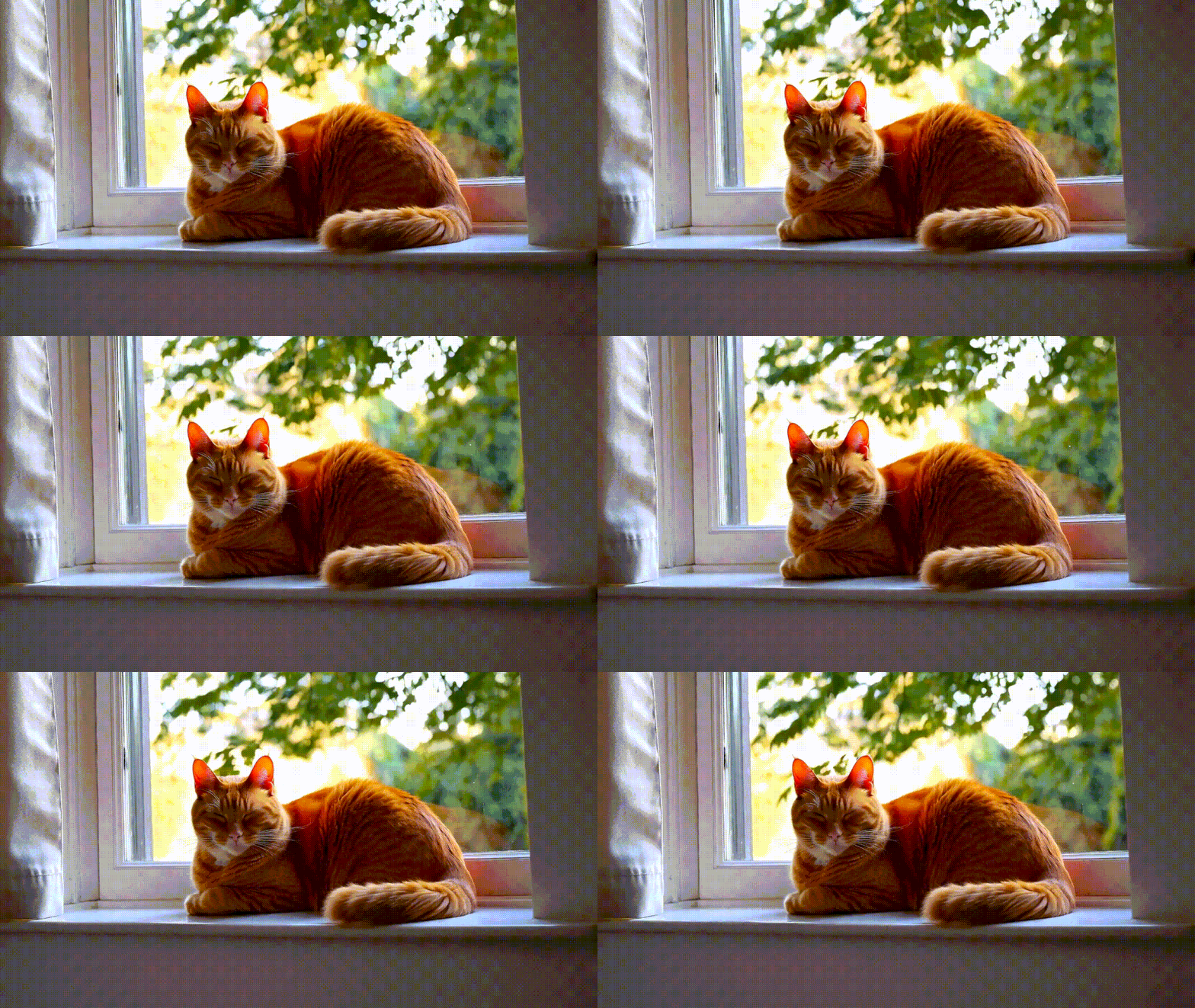
> A ginger cat sleeping on the windowsill.
> A ginger cat curls up on the windowsill, with sunlight streaming through the window and casting a warm glow on its soft fur. The cat peacefully closes its eyes, while the green trees outside sway gently in the breeze. The air is filled with the calmness of the afternoon.
> The ginger cat's silhouette is bathed in warm sunlight, with the background blurred, turning the images of trees and window frames into soft color blocks. The indoor lighting is gentle, evoking a sense of peaceful tranquility. The scene is captured with a soft-focus effect, emphasizing the cat's serenity and relaxation.
When generating text-to-video, you can not only input the corresponding prompts for the shots but also use Camera Control for more precise control over the camera.
For related camera control videos, click below:
{% content-ref url="/pages/4Kb0Sjry0HoVEcKgBFBw" %}
[Camera Movement](/guide-1/seaart-ai-basic-function/ai-video-generation/camera-movement.md)
{% endcontent-ref %}
After the video is generated, you can use the following common actions:
* HD Fix - create a clearer version of the video.
* Interpolate - increase the frame rate for smoother motion.
* Edit Video - continue editing the video.
* Chat - talk with a character in the video.